Build your own payout forms
Payouts
For handling payouts, we use the same infrastructure but with type: 'payout' in the payment request. The flow is similar but optimized for sending money to your users.
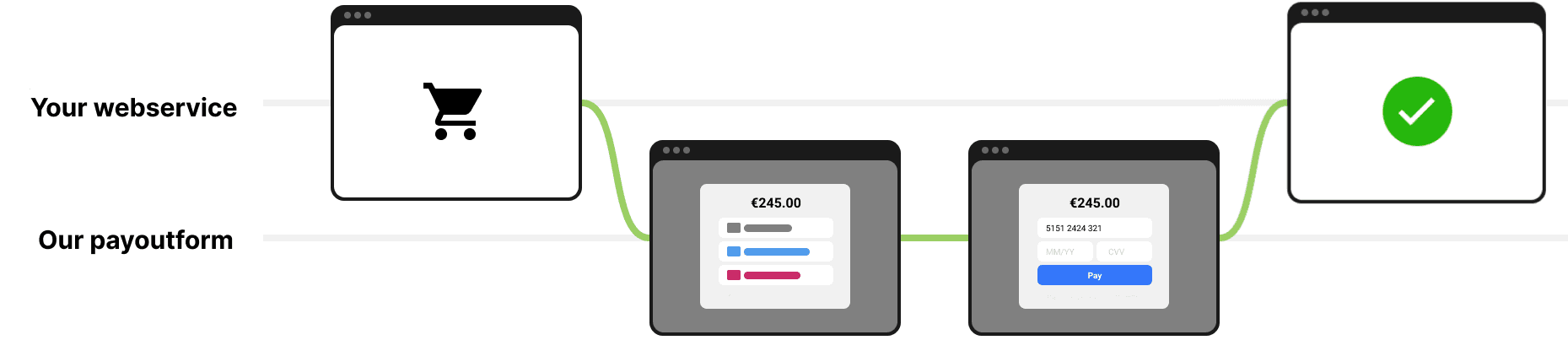 Figure 1 — The common payout path with our Payout Form.
Payout Flow Steps
- Your user requests a payout from your system.
- After setting up a payment with
POST /api/paymentsandtype: 'payout', you send your user to our payout method selection screen. - Depending on the payout method, your user may need to provide additional information.
- The user completes the payout details and is sent back to your website.
- We process the payout and send you a webhook.
Building Custom Forms
Now you want to build a fully-custom UI that lives on your own page for either payouts.
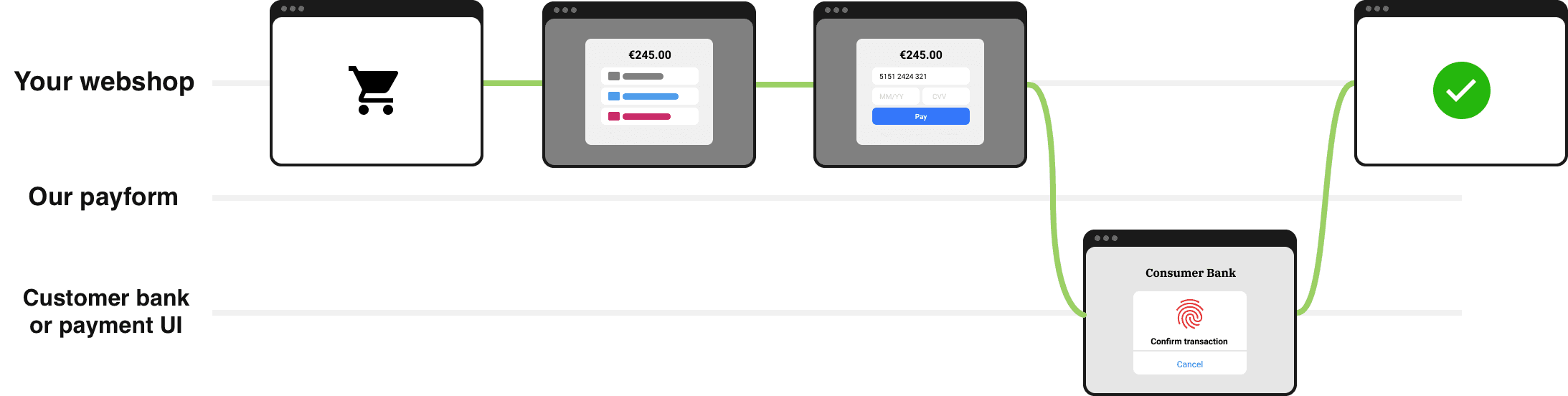 Figure 2 — Your own custom UI flow.
The flow for both payouts uses the same endpoints, with a small difference in the request parameters:
| What you call | Purpose |
|---|---|
GET /api/views?type=payout | Get all payout methods and UI views |
POST /api/payments/:id | Single action endpoint that drives the wizard for both flows. You always send the current state object, we answer with an updated Payment. |
Preparation
-
Get a token in the Merchant Dashboard.
- For payouts: Enable the "Payout" checkbox when generating the token
⚠️ Important: Always keep tokens on your server — never expose them in frontend code.
-
Call every endpoint over HTTPS and add the header
Authorization: Bearer <your-token>for creating.
Step 1 — Discover payout methods and their UI views
Endpoints
| Endpoint | Description |
|---|---|
GET /api/views?type=payout | Get payout methods and UI views (for payouts) |
Response Format
Both payout endpoints return a response with two main sections:
Views
Each view has the following structure:
id: Unique identifier for the viewdescription: Detailed description of the view's purposepreviousViews: Array of view IDs that can navigate to this viewpreviousViewsFields: Fields to collect when navigating back to this viewnextViews: Array of view IDs that can be navigated to from this viewnextViewsFields: Fields to collect for navigating to the next view
Methods
Each method has:
method: Unique identifier for the method (e.g., "card-usd-p2p", "yape-pen-p2p")displayName: User-friendly name (e.g., "Pay with Card", "Yape PEN")displayDescription: Detailed descriptiondisplayNameTranslationKey: Translation key (if you use multilanguage)displayDescriptionTranslationKey: Translation key (if you use multilanguage)logoUrl: Path to the method's logominAmount: Minimum amount for the methodmaxAmount: Maximum amount for the methodsupportedCurrencies: Array of supported currency codesnextView: The first view to show when this method is selected
Response for /api/views?type=payout
{
  "views": [
    {
        "id": "collectP2PDetails",
        "description": "Collect fields for P2P payout",
        "previousViews": ["selectPaymentMethod"],
        "previousViewsFields": [
          {
            "name": "method",
            "type": "hidden",
            "label": "Payout method",
            "required": true,
            "options": [{ value: null, label: 'Clear method' }],
          },
        ],
        "nextViews": ["collectP2PDetails"],
        "nextViewsFields": [
          {
            "name": "method",
            "type": "hidden",
            "label": "Payout method",
            "required": true,
            "options": [{
              "value": <method name>,
              "label": <method display name>
            }], // Array with all available P2P payment methods
          },
          {
            "name": "phone",
            "type": "phone",
            "label": "Phone number for payout",
            "required": false,
            "placeholder": "+1 234 567 8900",
          },
          {
            "name": "account",
            "type": "text",
            "label": "Account number for payout",
            "required": false,
            "placeholder": "1234567890",
          },
          {
            "name": "card",
            "type": "card",
            "label": "Card number for payout",
            "required": false,
            "placeholder": "4242 4242 4242 4242",
          },
          {
            "name": "name",
            "type": "text",
            "label": "Recipient name",
            "required": false,
            "placeholder": "John Smith",
          },
          {
            "name": "bank",
            "type": "text",
            "label": "Bank name",
            "required": false,
            "placeholder": "BankName",
          },
        ],
      },
      {
        "id": "waitingForConfirm",
        "description": "Waiting for confirmation of details",
        "previousViews": ["selectPaymentMethod"],
        "previousViewsFields": [
          {
            "name": "method",
            "type": "hidden",
            "label": "Payout method",
            "required": true,
            "options": [{ value: null, label: 'Clear method' }],
          },
        ],
        "nextViews": ["waitingForConfirm"],
        "nextViewsFields": [
          {
            "name": "method",
            "type": "hidden",
            "label": "Payout method",
            "required": true,
            "options": [{
              "value": <method name>,
              "label": <method display name>
            }], // Array with all available P2P payment methods
          },
          {
            "name": "phone",
            "type": "phone",
            "label": "Phone number for payout",
            "required": false,
          },
          {
            "name": "account",
            "type": "text",
            "label": "Account number for payout",
            "required": false,
          },
          {
            "name": "card",
            "type": "card",
            "label": "Card number for payout",
            "required": false,
          },
          {
            "name": "name",
            "type": "text",
            "label": "Recipient name",
            "required": false,
          },
          {
            "name": "bank",
            "type": "text",
            "label": "Bank name",
            "required": false,
          },
          {
            "name": "isUserApproved",
            "type": "checkbox",
            "label": "User approved the details",
            "required": false,
            "defaultValue": false,
          },
        ],
      },
      {
        "id": "waitingForP2PTransactionAndConfirmation",
        "description": "Waiting for payout",
        "previousViews": ["selectPaymentMethod"],
        "previousViewsFields": [
          {
            "name": "method",
            "type": "hidden",
            "label": "Payout method",
            "required": true,
            "options": [{ value: null, label: 'Clear method' }],
          },
        ],
        "nextViews": ["waitingForP2PTransactionAndConfirmation"],
        "nextViewsFields": [
          {
            "name": "method",
            "type": "hidden",
            "label": "Payout method",
            "required": true,
            "options": [{
              "value": <method name>,
              "label": <method display name>
            }], // Array with all available P2P payment methods
          },
          {
            "name": "confirmationToken",
            "type": "hidden",
            "label": "Confirmation token",
            "required": false,
          },
          {
            "name": "amount",
            "type": "hidden",
            "label": "Amount",
            "required": false,
          },
          {
            "name": "currency",
            "type": "hidden",
            "label": "Currency",
            "required": false,
          },
          {
            "name": "status",
            "type": "hidden",
            "label": "Status",
            "required": false,
          },
          {
            "name": "reason",
            "type": "hidden",
            "label": "Status reason",
            "required": false,
          },
          {
            "name": "isUserApproved",
            "type": "checkbox",
            "label": "User approved the details",
            "required": false,
            "defaultValue": false,
          },
          {
            "name": "isRefused",
            "type": "checkbox",
            "label": "Is refused",
            "required": false,
          },
          {
            "name": "receiptUrl",
            "type": "text",
            "label": "Receipt URL",
            "required": false,
          },
          {
            "name": "newDetailId",
            "type": "text",
            "label": "New detail ID",
            "required": false,
          },
        ],
      },
      {
        "id": "confirmed",
        "description": "Payout completed successfully",
        "previousViews": [],
        "previousViewsFields": [],
        "nextViews": [],
        "nextViewsFields": [],
      },
      {
        "id": "canceled",
        "description": "Payout was canceled",
        "previousViews": [],
        "previousViewsFields": [],
        "nextViews": [],
        "nextViewsFields": [],
      },
  ]
  "methods": [
    {
      "method": "yape-pen-p2p",
      "displayName": "Yape Pen",
      "displayDescription": "Pay with Yape Pen",
      "displayNameTranslationKey": "PaymentMethod.yape-pen-p2p.displayName"
      "displayDescriptionTranslationKey": "PaymentMethod.yape-pen-p2p.displayDescription"
      "logoUrl": "/methods/yape-logo.svg",
      "minAmount": "10",
      "maxAmount": "1000",
      "supportedCurrencies": ["PEN"],
      "nextView": "collectP2PDetails"
    },
    ...
  ] // Array of information about all active payment methods
}
Cache this response — it changes rarely (new methods).
Step 2 — Update UI state
This API allows you to move step-by-step through the payout process by updating the state of the payment object. Each step corresponds to a specific user interface view and is designed to collect the necessary information to successfully complete the operation.
When created, the Payout object is initialized in the starting state: {"view": "selectPaymentMethod", "method": null}.
Required body fields
| Field | Type | Example | Description |
|---|---|---|---|
amount | string, decimal | "10.00" | Use a dot as the decimal separator. |
currency | string, ISO 4217 | "EUR" | Three capital letters. |
type | string | "payout" | Must be set to "payout" to indicate this is a payout transaction. |
Optional body fields
| Field | Type | Purpose |
|---|---|---|
description | string, max 255 chars | Shown to the recipient and in your dashboard. |
metadata | object, max 4KB | Any JSON object (max 4KB when serialized). Arrays and null values are not allowed in the root. |
externalId | string, max 255 chars | Your unique identifier for this payout. Useful for mapping our payout ID to your internal ID. |
redirectUrl | URL, max 2KB | Where to return the user after filling in the payment details. Must be HTTPS |
webhookUrl | URL, max 2KB | Overrides the default webhook just for this payout. Must be HTTPS. |
The following fields are required for creation:
curl -X POST https://example.com/api/payments \
  -H "Authorization: Bearer tk_test_n4912345faza90aefk4c3awf" \
  -H "Content-Type: application/json" \
  -d '{
        "amount": "10",
        "currency": "PEN",
        "type": "payout"
      }'
Response:
{
    "id": "pay_4dc6dec2-1684-41dd-b99e-d330200e132b",
    "externalId": null,
    "amount": "10",
    "currency": "PEN",
    "status": "pending",
    "type": "payout",
    "state": {
        "view": "selectPaymentMethod",
        "method": null
    },
    "formOptions": {
        "lang": "es",
        "methods": [
            "card-usd-p2p",
            "yape-bob-p2p",
            "qr-bob-p2p",
            "nequi-p2p",
            "nequi-bre-b-p2p",
            "qr-pen-p2p",
            "transfiya-p2p",
            "bank2bank-pe-p2p",
            "daviplata-p2p",
            "plin-p2p",
            "viabcp-p2p",
            "interbank-p2p",
            "yape-pen-p2p"
        ],
        "navigation": false
    },
    "url": "https://example.com/checkin/pay_4dc6dec2-1684-41dd-b99e-d330200e132b?lang=es&methods=card-usd-p2p%2Cyape-bob-p2p%2Cqr-bob-p2p%2Cnequi-p2p%2Ctransfiya-p2p%2Cbank2bank-pe-p2p%2Cdaviplata-p2p%2Cplin-p2p%2Cviabcp-p2p%2Cinterbank-p2p%2Cyape-pen-p2p&navigation=false",
    "description": "",
    "metadata": null
}
Overrides the default state
You can manually set the initial state of a payment. This can be useful in two situations:
-
Preselecting a payment method. If you already know which payment method should be used, you can set the required state immediately, skipping the standard method-selection flow.
-
Creating without user interaction. If you already have the recipient’s details, you can create a payment directly, without redirecting the user to the check-in form. In this case, the payment goes straight to processing.
Below is a detailed explanation of each scenario.
Creating a payout without user interaction
⚠️ Important: The state object supports the following fields: method, name, phone, account, bank, card. You should provide only the fields required by the selected payment method.
Then provide a state object, for example for yape-pen-p2p:
{
  "state": {
    "method": "yape-pen-p2p",
    "name": "JOHN TEST",
    "phone": "+573001112233"
  }
}
In the method field, you should pass the internal name of the payment method, for example card-usd-p2p, yape-pen-p2p, etc.
Full request example:
curl -X POST 'https://example.com/api/payments' \
  -H "Authorization: Bearer tk_test_n4912345faza90aefk4c3awf" \
  -H "Content-Type: application/json" \
  -d '{
      "amount": "10",
      "currency": "PEN",
      "type": "payout",
      "state": {
        "method": "yape-pen-p2p",
        "name": "JOHN TEST",
        "phone": "+573001112233"
      }
    }'
If all validations are successful, the method is active, and the provided details are valid, you will receive a response like this:
{
  "id": "pay_4dc6dec2-1684-41dd-b99e-d330200e132b",
  "externalId": null,
  "amount": "10",
  "currency": "PEN",
  "status": "pending",
  "state": {
    "name": "JOHN TEST",
    "view": "waitingForP2PTransactionAndConfirmation",
    "isP2P": true,
    "phone": "+573001112233",
    "method": "yape-pen-p2p",
    "redirectUrl": "https://example.com/api/test/redirectUrl?paymentId=pay_3f6baab3-515a-4cba-a04b-6bd01afa2b29&status=pending",
    "isUserApproved": true
  },
  "formOptions": {
    "lang": "es",
    "methods": [
      "nequi-p2p",
      "nequi-bre-b-p2p",
      "qr-pen-p2p",
      "transfiya-p2p",
      "daviplata-p2p",
      "plin-p2p",
      "viabcp-p2p",
      "interbank-p2p",
      "bank2bank-pe-p2p",
      "yape-pen-p2p",
      "yape-bob-p2p",
      "qr-bob-p2p",
      "card-usd-p2p",
      "phone2phone-usd-p2p"
    ],
    "navigation": false,
  },
  "type": "payout",
  "url": "http://example.com/checkin/pay_4dc6dec2-1684-41dd-b99e-d330200e132b?lang=es&methods=nequi-p2p%2Ctransfiya-p2p%2Cdaviplata-p2p%2Cplin-p2p%2Cviabcp-p2p%2Cinterbank-p2p%2Cbank2bank-pe-p2p%2Cyape-pen-p2p%2Cyape-bob-p2p%2Cqr-bob-p2p%2Ccard-usd-p2p%2Cphone2phone-usd-p2p&navigation=false",
  "description": "",
  "metadata": null
}
⚠️ NOTE: Unlike the next scenario, if any validation fails in this flow, the payout will not be created at all.
Preselecting a payment method
When creating a payout, you have the option to pass a state object like this:
{
  "state": {
    "view": "selectPaymentMethod",
    "method": "yape-pen-p2p"
  }
}
In the method field, you should pass the internal name of the payment method, for example card-usd-p2p, yape-pen-p2p, etc.
The view field must always be set to "view": "selectPaymentMethod".
In this case, the user will immediately see the form for entering the transfer details.
⚠️ Important: if the specified payment method is not supported by your organization, is invalid, does not support the payment currency, or the staff organizations do not have payment details for it, the payout will be created with the default state:
{
  "state": {
    "view": "selectPaymentMethod",
    "method": null
  }
}
Additionally, you can pass formOptions for the payment so that on the payment method selection step, the user only sees and can choose the methods you want. Example of a valid full JSON request body:
{
  "amount": "10",
  "currency": "PEN",
  "type": "payout",
  "description": "Test Payment",
  "state": {
    "view": "selectPaymentMethod",
    "method": "yape-pen-p2p"
  },
  "formOptions": {
    "navigation": false,
    "methods": ["yape-pen-p2p"],
    "lang": "es"
  }
}
Below is the complete interaction cycle between your frontend and the server via the /api/payments/:id endpoint.
Lines starting with → POST denote sending state updates to the server.
Lines starting with → GET denote requests to get the current payout status (polling).
Lines starting with ← 200 OK denote the server's response with the updated payment state.
Important!
The payment's state object with type payout has several views:
'selectPaymentMethod',
'collectP2PDetails',
'waitingForP2PTransactionAndConfirmation',
'waitingForConfirm',
'confirmed',
'canceled'
You need to prepare interfaces on your checkin page for each of them.
Updating Payout State
A complete end-to-end example (using yape-pen-p2p).
Once the payment is created, it is returned in this state
curl -X GET https://example.com/api/payments/pay_4dc6dec2-1684-41dd-b99e-d330200e132b \
{
  "state": {
    "view": "selectPaymentMethod",
    "method": null
  }
}
1. selectPaymentMethod
Goal: Display available payment methods for the user to choose from.
UI Actions:
- Get all available payout methods via
/api/views?type=payout. - Filtering: Apply the following filters to the retrieved methods:
- By the passed
queryParams(formed from the payment'sformOptions). - By the payout currency (the
supportedCurrenciesfield must contain the target currency). - By the minimum amount (the method's
minAmountshould not exceed the payout amount).
- By the passed
- Display the filtered methods.
- After selecting a method, update the state by passing the
method.
Request (Method Selection):
curl -X POST https://example.com/api/payments/pay_0ba11c22-d676-4937-9e5a-4e12889278e1 \
-d '{
      "state": {
        "view": "selectPaymentMethod",
        "method": "yape-pen-p2p"
      }
    }'
Response (Transition to collecting details):
← 200 OK
{
  "state": {
    "view": "collectP2PDetails",
    "isP2P": true,
    "method": "yape-pen-p2p"
  }
}
2. collectP2PDetails
Goal: Collect the user's payment details.
UI Actions:
- Determine the required input fields based on the
p2pRecipientFieldsandp2pRecipientCheckFieldsof the selected method (yape-pen-p2p). - Supported fields:
phone,card,name,account,bank. - Render a form to enter this data.
- After filling, send the updated state, including the entered data.
Required fields for yape-pen-p2p: name, phone.
Request (Submitting Details):
curl -X POST https://example.com/api/payments/pay_0ba11c22-d676-4937-9e5a-4e12889278e1 \
-d '{
      "state": {
        "view": "collectP2PDetails",
        "method": "yape-pen-p2p",
        "isP2P": true,
        "name": "JOHN TEST",
        "phone": "573001112233"
      }
    }'
Response (Transition to confirmation):
← 200 OK
{
  "state": {
    "name": "JOHN TEST",
    "view": "waitingForConfirm",
    "isP2P": true,
    "phone": "573001112233",
    "method": "yape-pen-p2p"
  }
}
⚠️ If the user wants to return to the method selection screen, you just need to pass a new state object
Request (Returning to method selection):
curl -X POST https://example.com/api/payments/pay_0ba11c22-d676-4937-9e5a-4e12889278e1 \
-d '{
      "state": {
        "view": "selectPaymentMethod",
        "method": null,
      }
    }'
Response (Back to method selection):
← 200 OK
  "state": {
    "view": "selectPaymentMethod",
    "method": null
  }
3. waitingForConfirm
Goal: Wait for the user to confirm the correctness of the entered details.
UI Actions:
- Display the entered details (
method,name,phoneand other fields) for final verification. - Warn the user that after confirmation, it will be impossible to change the method or details.
- Upon receiving user confirmation, update the state by adding the field
isUserApproved: true.
Request (Confirming Details):
curl -X POST https://example.com/api/payments/pay_0ba11c22-d676-4937-9e5a-4e12889278e1 \
-d '{
      "state": {
        "view": "waitingForConfirm",
        "method": "yape-pen-p2p",
        "isP2P": true,
        "name": "JOHN TEST",
        "phone": "573001112233",
        "isUserApproved": true
      }
    }'
Response (Start of payout processing):
← 200 OK
{
  "state": {
    "name": "JOHN TEST",
    "view": "waitingForP2PTransactionAndConfirmation",
    "isP2P": true,
    "phone": "573001112233",
    "method": "yape-pen-p2p",
    "redirectUrl": "https://example.com/api/test/redirectUrl?paymentId=pay_0ba11c22-d676-4937-9e5a-4e12889278e1&status=pending",
    "isUserApproved": true
  }
}
Field redirectUrl is automatically generated and depends on your organization settings. At this stage, you can redirect the user to your service or leave the option to go there by button, showing a loader.
4. waitingForP2PTransactionAndConfirmation
Goal: Indicate that the payout is being processed.
UI Actions:
- Display a loading screen (loader) or a processing notification.
- The payout can no longer be changed.
- Start polling requests (
GET /api/payment/:id) to get the final status (confirmedorcanceled). - The
redirectUrlfield can be used for automatic or manual redirection of the user to your service.
Status Check (Polling):
curl -X GET https://example.com/api/payments/pay_0ba11c22-d676-4937-9e5a-4e12889278e1
# Repeat at intervals until the view changes
Response (Successful Completion):
← 200 OK
{
  "status": "succeeded",
  "amount": "10",
  "state": {
    "name": "JOHN TEST",
    "view": "confirmed",
    "isP2P": true,
    "phone": "573001112233",
    "method": "yape-pen-p2p",
    "reason": "Payout confirmed",
    "oldAmount": "10",
    "oldStatus": "pending",
    "receiptUrl": "url for downloading receipt",
    "oldCurrency": "PEN",
    "redirectUrl": "https://example.com/api/test/redirectUrl?paymentId=pay_0ba11c22-d676-4937-9e5a-4e12889278e1&status=pending",
    "isUserApproved": true
  }
}
Response (Failure):
← 200 OK
{
  "status": "failed",
  "amount": "10",
  "state": {
    "name": "JOHN TEST",
    "view": "canceled",
    "isP2P": true,
    "phone": "573001112233",
    "method": "yape-pen-p2p",
    "reason": "Failed to make a payout, please select another method",
    "status": "failed",
    "redirectUrl": "https://example.com/api/test/redirectUrl?paymentId=pay_0ba11c22-d676-4937-9e5a-4e12889278e1&status=pending",
    "refusedCount": 4,
    "isUserApproved": true
  }
}
5. confirmed
Goal: Notify about the successful completion of the payout.
UI Actions:
- Display a successful payout screen.
- Provide the user with the option to download the receipt using
receiptUrl. - Use
redirectUrlto redirect to your service.
6. canceled
Goal: Notify about the cancellation or failure of the payout.
UI Actions:
- Display an error/cancellation screen.
- Provide information about the reason for failure (
reason). - The user can be redirected to your service via
redirectUrlor returned to the initial method selection screen (selectPaymentMethod).
Additional information
⚠️ Important: If you're using your own web server as a proxy to restrict which IP addresses can send requests, make sure to add those IPs to the IP whitelist in your client dashboard. Any requests to our API coming from non-whitelisted IP addresses will be automatically blocked.
Errors
All errors from our API are returned in the following format. You must use translation keys to display them correctly:
{
  "type": "validation_error",
  "details": "Errors.validation.card.number.required",
  "errorId": "a3c8b6f9-e5cb-4d93-9f40-1a9ceca565d6",
  "timestamp": "2025-05-27T14:32:55Z",
  "fieldErrors": {
    "cardNumber": ["Errors.validation.card.number.required"]
  }
}